Using Stemi Editor
Connecting to device
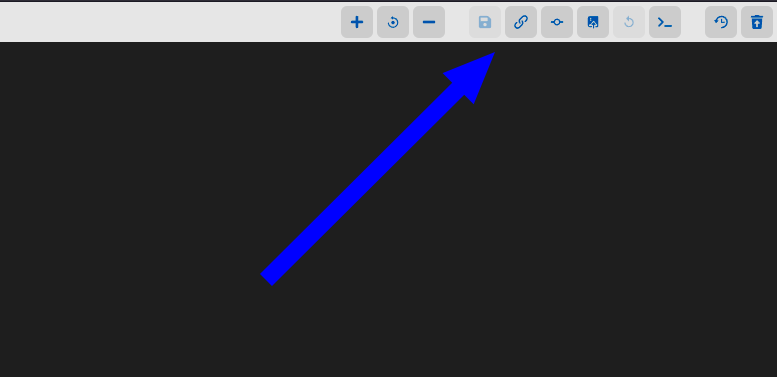
After logging in to Stemi Editor, you need to connect to the device you want to use. You can do so by clicking Connect to a device button as shown below.
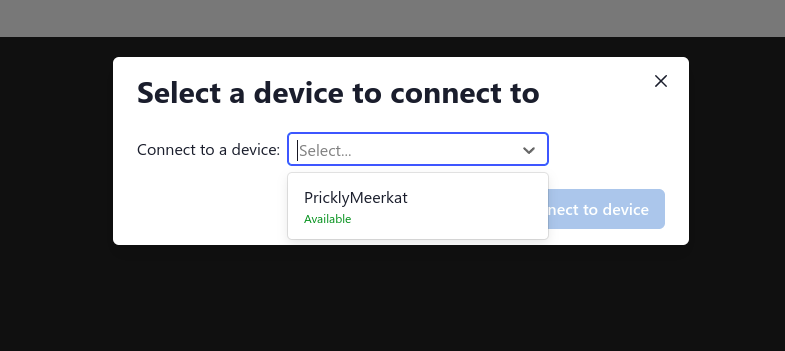
After that a modal will apear where you can select your device.
Commiting code to device
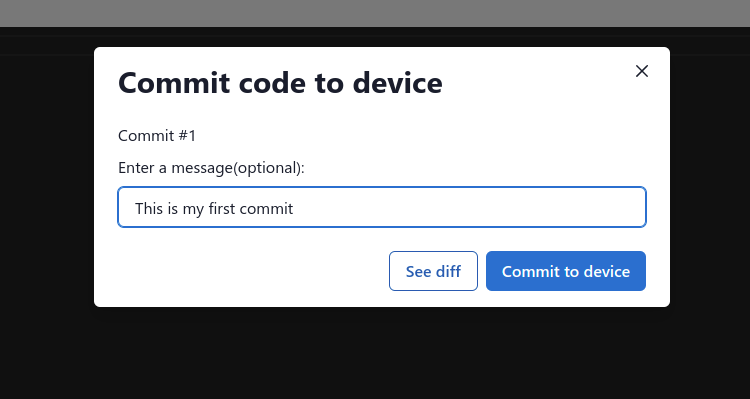
Before you can run the code on a device, you need to commit some to it. The device will then pull this code and run it. If the device is currently offline, it will do so on next boot. You can commit code by clicking the commit button.

After that, a modal will apear where you can enter a commit message, the message is optional but desired as it will be useful later to keep track of commits.
Upon commiting code you should see the following notification.

Terminal
Stemi Editor has an included terminal that will show device output. It can be accessed throught the Open device logs button.

After clicking that button the terminal will appear, it will look simillar to the following.

There is no output, as the terminal was closed at the time of commiting code. We can run the code again to see the output.
To run the code again, simply click the Rerun code on device button.

The terminal should then show the following message.

Keeping track of changes
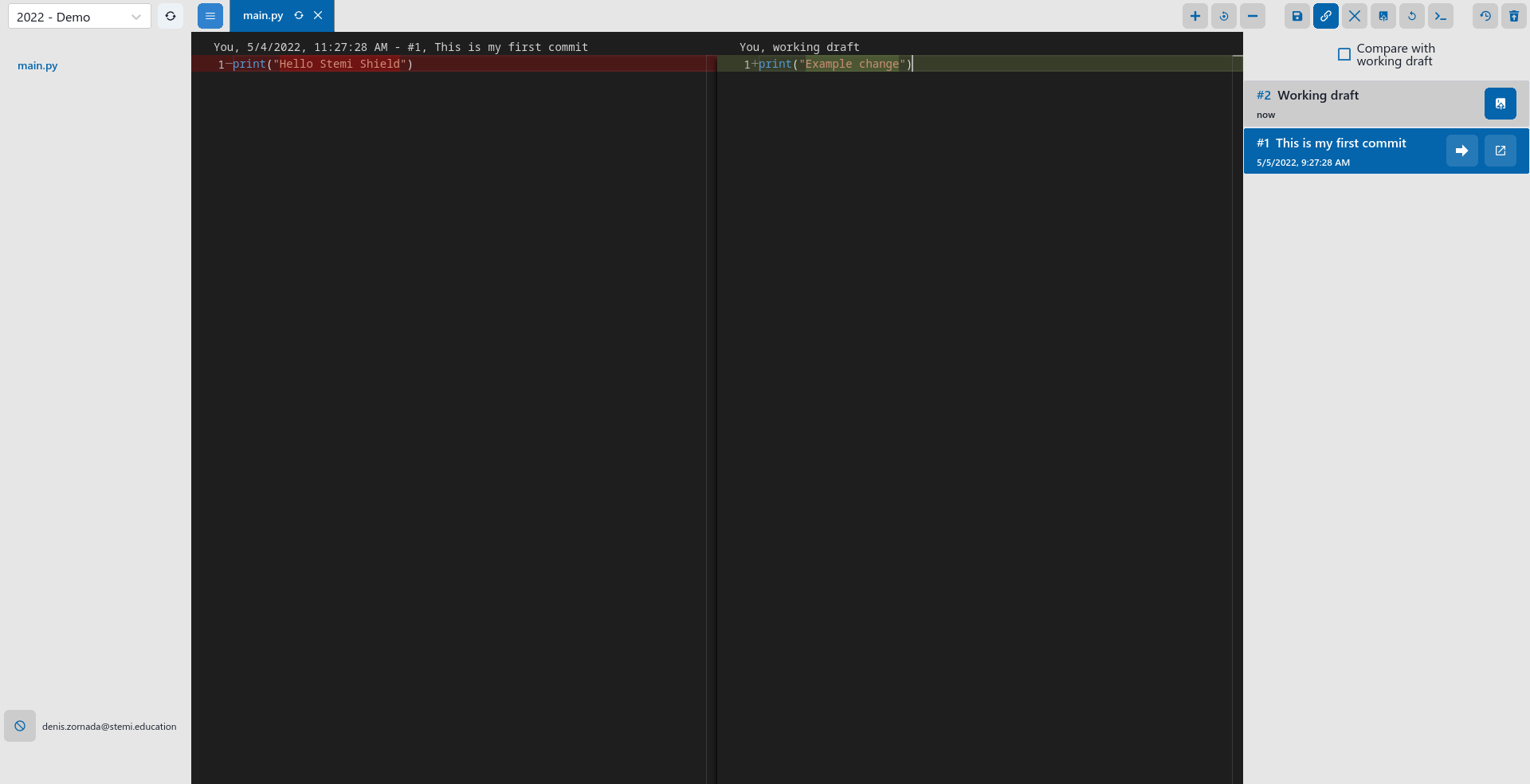
You can view all your commits on a device by clicking List commits on device button.

A view like the one below will open up.